
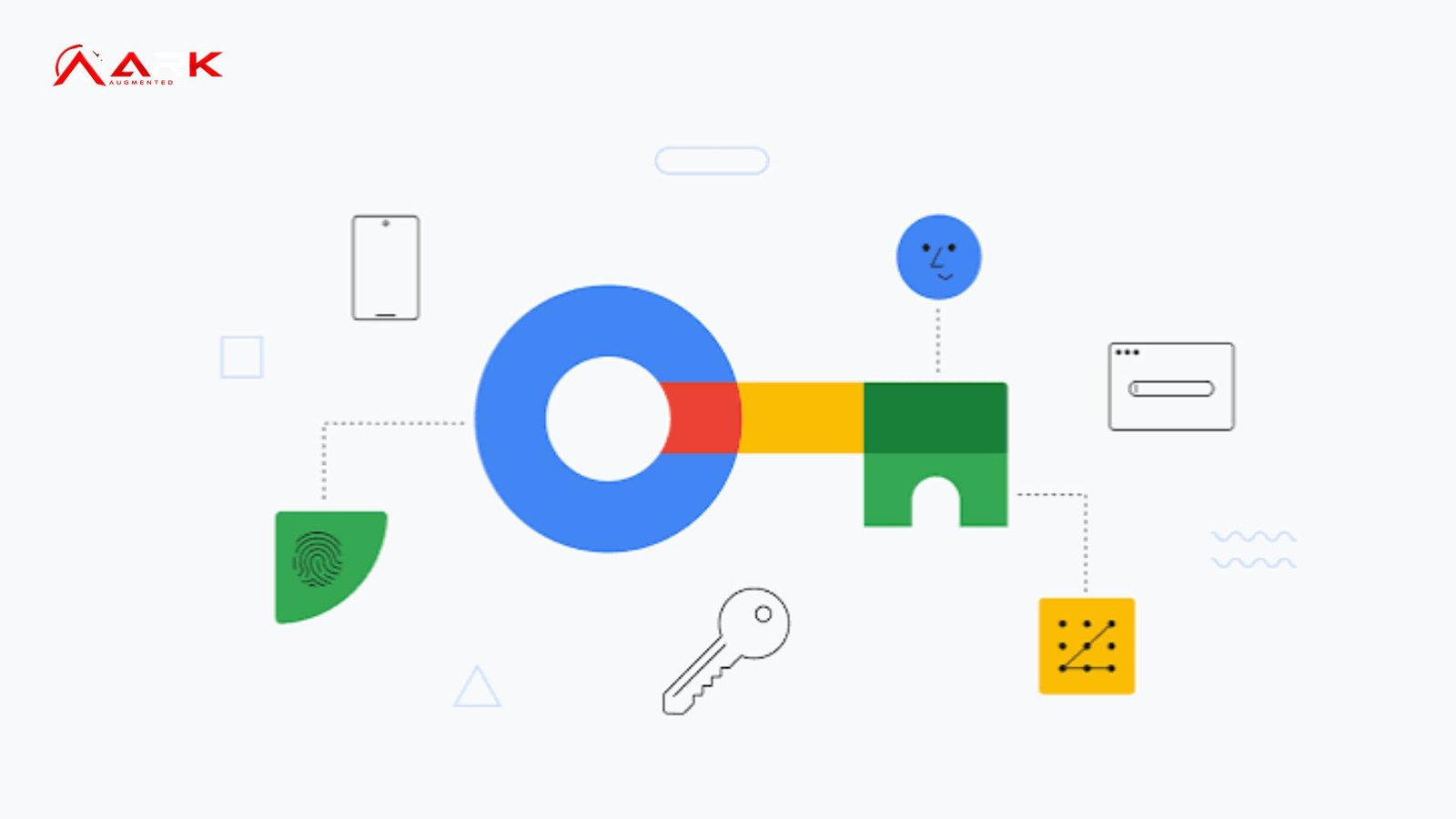
Google passkeys let you sign in without typing a traditional password. Instead, your phone, computer, or security key creates and protects a cryptographic credential that you unlock with a fingerprint, face scan, PIN, or device screen lock. Google supports passkeys for Google Accounts and many third-party websites and apps, making passwordless authentication increasingly practical.
For users, the biggest change is simple: there is no password to remember or type. For security, the underlying technology is based on FIDO standards and public-key cryptography, which makes passkeys resistant to many phishing and credential-stuffing attacks.
What Are Google Passkeys?
Google passkeys are FIDO credentials associated with a particular online account. During setup, a private key is created and protected by your device or passkey provider, while the corresponding public key is registered with the service. During login, the service verifies a cryptographic response rather than receiving your password.
The biometric step does not mean Google receives your fingerprint or face data. Google states that biometric information used for passkey authentication remains on the device. The biometric or screen lock simply authorizes your device to use the credential.
That distinction matters. A passkey is not simply a password stored behind Face ID or a fingerprint. It uses a different authentication model designed to prevent the credential itself from being submitted to a fake website.
How Do Google Passkeys Work?
The process is easier to understand in three stages:
- Creation: You create a passkey for a supported website, app, or Google Account.
- Protection: The credential is secured by your device, password manager, or compatible security key.
- Authentication: At login, you approve the request using your fingerprint, face scan, PIN, or screen lock.
The website never needs your private key. Instead, it stores the public key and uses it to verify authentication. FIDO describes this as a challenge-response system using asymmetric cryptography.
This also explains why passkeys are phishing-resistant. A passkey is tied to the legitimate service’s domain, so it is not designed to authenticate you to an unrelated phishing website.
Synced vs. Device-Bound Passkeys
Not every passkey works in exactly the same way. FIDO distinguishes between synced passkeys and device-bound passkeys.
| Type | Where it is protected | Main characteristic |
|---|---|---|
| Synced passkey | Passkey provider across your devices | Convenient recovery and multi-device access |
| Device-bound passkey | Specific device or security key | Credential remains tied to that physical authenticator |
Synced credentials are particularly convenient because a passkey can become available on another device using the same provider. Device-bound credentials can provide a stronger hardware-based security model and are commonly associated with security keys.
💡 Pro Tip: Create passkeys only on devices you personally control. On a shared or borrowed device, another person who can unlock it may be able to use the passkey to access the associated account. Google specifically recommends creating account passkeys only on devices you own and regularly use.
How to Set Up Google Passkeys
To add a passkey to your Google Account, sign in to your account and open the passkey settings. Google supports compatible computers, phones, and FIDO2 security keys; supported operating systems and browsers include modern versions of Windows, macOS, ChromeOS, Android, iOS, Chrome, Safari, Edge, and Firefox.
The exact menus can vary by device, but the general process is:
- Choose the option to create or add a passkey.
- Confirm the device or passkey provider you want to use.
- Authenticate with your fingerprint, face scan, PIN, or screen lock.
- Complete the registration.
- Test the passkey by signing in again.
For Android users, Google Password Manager can save and sync passkeys across compatible devices signed into the same Google Account. Android requires a screen lock for passkey storage, and users can manage saved credentials through Google Password Manager.
If you use Google passkeys for third-party services, remember that the individual website or app must support passkeys. Having a compatible phone or browser does not automatically make every website passwordless.
Are Google Passkeys Safer Than Passwords?
Passkeys address several weaknesses built into password authentication. Passwords can be guessed, reused, stolen through phishing, or exposed in database breaches. A passkey uses a unique cryptographic credential for the service instead.
There is also less information for an attacker to steal from the service. The private key remains with the authenticator, while the service uses the corresponding public key for verification.
Google also says adding a passkey does not remove your existing authentication or recovery methods. Depending on your account configuration, passkeys can change how you complete authentication, so it is still sensible to maintain appropriate recovery options and protect your Google Account itself.
Passkeys are not a substitute for securing the device that holds them. A strong screen lock, updated operating system, account recovery information, and sensible device security remain important.
What Happens If You Lose Your Phone?
This is where synced passkeys can be useful. Google Password Manager can synchronize passkeys across devices when you use the same Google Account, allowing credentials to become available on supported devices. Google also provides recovery options for passkeys when moving to a new Android device.
Cross-device authentication provides another option. For example, Chrome can allow you to use a passkey stored on your phone to sign in on a computer by scanning a QR code and completing the authentication on the phone.
If you use a device-bound security key instead, recovery depends on having another authentication method or backup authenticator. That makes account recovery planning especially important for security-conscious users.
📌 Key Takeaway: Google passkeys combine passwordless convenience with FIDO-based cryptographic authentication. Their security advantage comes from how the credential is designed, not simply from replacing a password with a fingerprint.
Frequently Asked Questions
Are Google passkeys free?
Creating a passkey for a Google Account does not require a separate passkey subscription. Your device, operating system, browser, or password manager handles the credential. However, individual websites or services can have their own account requirements, so passkey availability varies by service.
Can I use a passkey on another device?
Yes. Synced passkeys can be available across compatible devices using the same passkey provider. You can also use cross-device authentication in supported situations, such as using a phone to authorize a sign-in on a computer through a QR-code flow.
Do passkeys replace my Google password?
Adding a passkey does not automatically remove your password or existing recovery factors. Google states that passkeys can be used as an alternative sign-in method, while account recovery and other authentication settings remain available.
Can Google see my fingerprint?
No. Google states that biometric information used to unlock a passkey stays on your device and is not shared with Google. The service receives confirmation that the local authentication requirement was successfully completed.
What if a website does not support passkeys?
You must use one of the authentication methods that the website provides. Passkeys depend on service support, so you may still encounter passwords, authenticator apps, security keys, or other login methods on some websites.
Conclusion
Google passkeys provide a practical way to move beyond password-based authentication without making everyday sign-ins complicated. Your device handles the cryptographic credential, while you authenticate locally with a familiar screen lock or biometric method.
For most users, the sensible approach is to enable passkeys on trusted personal devices, keep account recovery options current, and understand whether your credentials are synced or device-bound. As more websites adopt the FIDO standard, Google passkeys can become a normal part of everyday account security rather than a specialized security feature.
